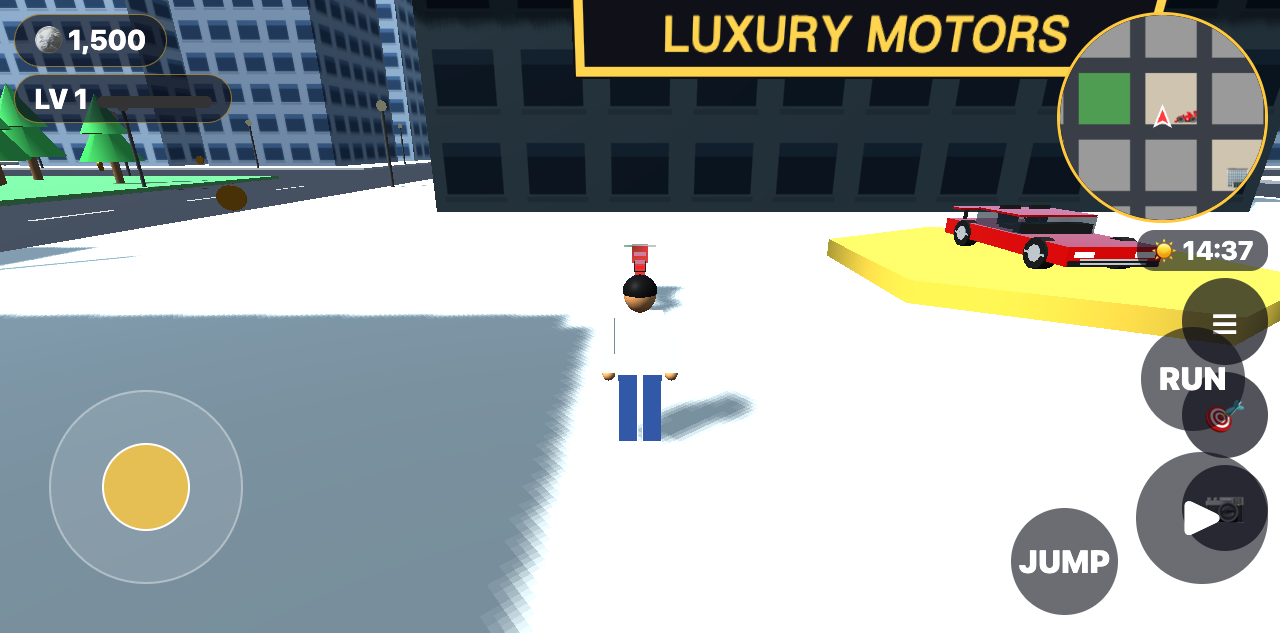
Sheru Bhai: Luxury Life is a browser game that you can start from the player on this page. It is credited to itz_me1234 on Astrocade and hosted by Head Football Games. SheruGame.com provides an independent information page and embed, so the game is made and hosted outside this site.
The browser build is a separate edition from the Android apps that use the Sheru name. It needs no APK, account or plugin. The player loads the hosted game after you select Play now. Use the controls and first-drive guide below to get through the opening city route, then return to the missions, garage and property systems when you know the basics.
What the Luxury Life browser build is
Luxury Life is the browser route for players who want to try a Sheru-themed city game without installing an Android package. The game opens inside the player above and uses its own city, missions, vehicles, coins and garage. The host credits itz_me1234 as the Astrocade creator, while the playable file is served from Head Football Games. That attribution matters because this page is an information and embed page, not the developer’s official product page.
The browser edition and the Android app called Sheru Game: Sherubhai Life 3D have different creators and different progress systems. The Android app is published by Digital Operation and uses the package com.dop.sherubhai.game.seru.saru. The Skorax Sheru Bhai Life Simulator Game is another separate app. Compare titles, developers and package IDs in Which Android app is which.
Controls
The game shows touch controls on a phone and accepts keyboard and mouse input on a computer. Click inside the game before pressing keys so the browser sends input to the player. The same basic movement works on foot and in a vehicle, with a few actions changing when you enter a car.
| Action | Keyboard or mouse | Touch |
|---|---|---|
| Walk or drive | W, A, S, D | Left joystick |
| Look around | Drag in the play area | Drag the right side of the play area |
| Enter a vehicle or interact | E | Action button |
| Jump on foot or use the handbrake in a car | Space | Jump / handbrake button |
| Run on foot or sound the horn in a car | Shift | Run / horn button |
| Change camera | C | Camera icon |
| Open the menu | M or Esc | Menu icon |
On a phone, open fullscreen and turn the device sideways if you prefer more room for steering. On a computer, a mouse drag in the play area changes the view. If a button is difficult to reach, pause and check the prompt near the vehicle or building instead of guessing which action is active.
Your first drive from Luxury Motors
- Start outside Luxury Motors. Move a short distance and practise turning the camera before entering a vehicle. On touch screens, keep the left thumb on the joystick and use the right thumb to look around.
- Choose a job from Missions. Open the menu and read the objective before setting off. Select one job, then follow its destination marker and the minimap.
- Drive to the objective. Use the handbrake when a tight turn needs a slower approach. When you arrive, check the on-screen action prompt. The same action control handles nearby interactions when you are back on foot.
- Check the Garage after a run. The Garage shows the vehicles you own. At the Luxury Motors showroom, compare the displayed speed, acceleration and handling information before choosing a car.
- Spend coins at your own pace. Review the Wardrobe for outfits and accessories, and inspect property listings for their purchase price and rent. These menus help you understand what a mission reward can support.
If you lose a destination, open Missions again and check the current objective. The minimap gives you a second reference for the route. When the city feels slow, try Low in the in-game graphics settings, reload the page in a current browser and avoid battery-saver mode while you play.
Missions, garage and coins
Missions give the browser build its short-term direction. Choose one objective, follow its marker and use the action prompt at the destination. Taking a moment to read the objective reduces unnecessary driving and makes it easier to tell whether you need to be on foot or in a vehicle.
The Garage is the place to review vehicles that you own. Luxury Motors displays vehicle information such as speed, acceleration and handling, so you can compare the options shown in the game. The page does not claim a fixed number of vehicles, a guaranteed reward or an unlimited-coin shortcut. Avoid downloads that promise modified coins or unlocked property because they are not part of the verified browser controls.
Coins can be used for cars, clothes and property rent in the browser build. Complete a selected mission, return to the Garage, and review the Wardrobe or property listings when you want to decide where to spend them. The Android app has a different store listing and should not be treated as if it shares the browser game’s coin system.
Where progress is saved
The browser build attempts to save progress in browser storage. Return in the same browser profile to continue. Private browsing, clearing site data, blocking storage or switching to another device can affect a save. An embedded game can also behave differently when a browser blocks third-party storage, so try the hosted browser page if the embedded player does not remember a session.
For step-by-step loading and storage checks, read Sheru Game Not Working. The Sheru Game tips page covers the same progress and driving topics in a shorter checklist. The Android app keeps its own progress and is installed from Google Play, so its save behaviour should be checked in that app’s settings.
FAQ
Can I play Luxury Life on a phone?
Yes. Open this page in a current mobile browser and use the on-screen joystick and action buttons. Fullscreen and a sideways grip give the play area more room for steering. A phone with battery-saver restrictions or limited storage may run the city less smoothly.
Do I need to download an APK?
No. This browser edition loads from the player and does not require an APK, account or plugin. The Android apps are separate products. If you want the Digital Operation app, use its Google Play listing and match the title, developer and package before installing.
Where is my Luxury Life save?
It is attempted in browser storage for the profile that opened the game. Return in the same browser profile, and avoid private browsing or clearing site data. A save may not follow you to another device.
How is this different from Sheru Game on Android?
The browser build is credited to itz_me1234 on Astrocade and hosted by Head Football Games. Sheru Game: Sherubhai Life 3D is published by Digital Operation as an Android app with package com.dop.sherubhai.game.seru.saru. They are separate editions with separate creators, controls and progress systems.
Use the Sheru Game homepage for the Android facts panel, or contact support@sherugame.com with the edition and device when a loading problem persists.
SheruGame.com is an independent fan information site and is not affiliated with the game developers.